Setup Guide
How to Install and Set Up Apps on Your Fire TV Stick App code for kstreamz Is 1429921
- Start by installing the Downloader app. This tool will enable you to easily load the TCH Plus TV apps onto your Firestick
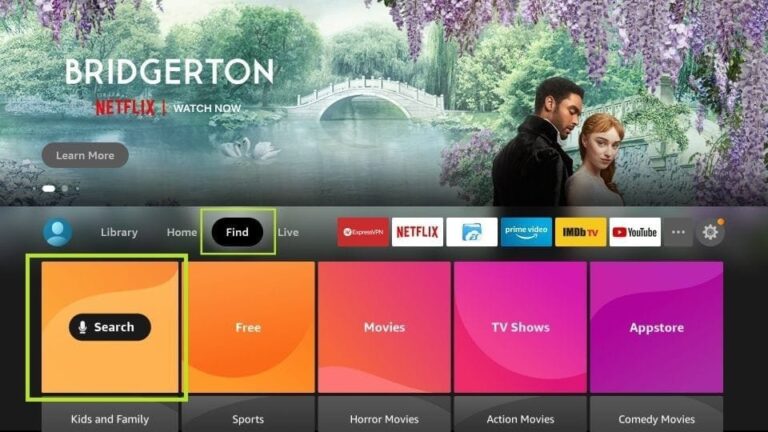
2.On your device’s home screen, navigate to the ‘Find’ section and select ‘Find’ > ‘Search’.
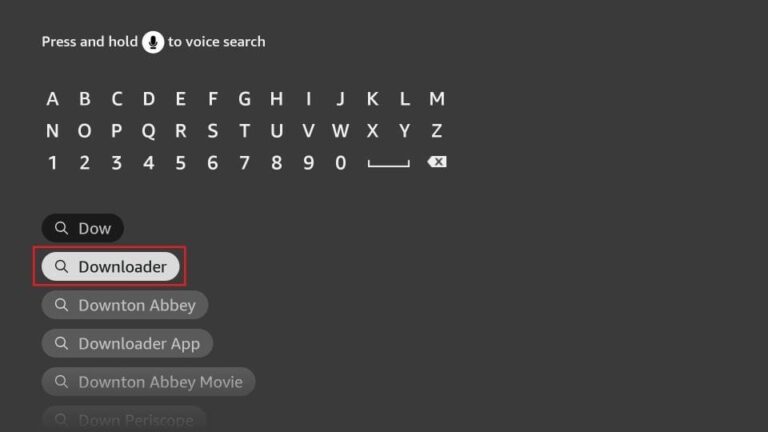
3.Search for the app by typing ‘Downloader’. Once it appears in the search results, select it. On the next screen, click the Downloader icon to download and install the app.
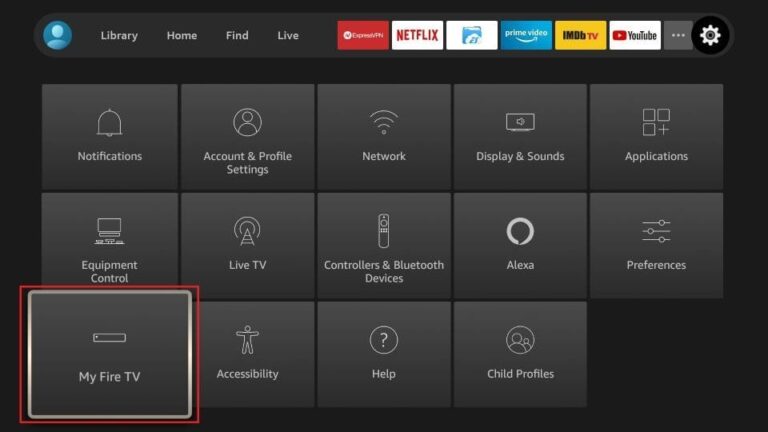
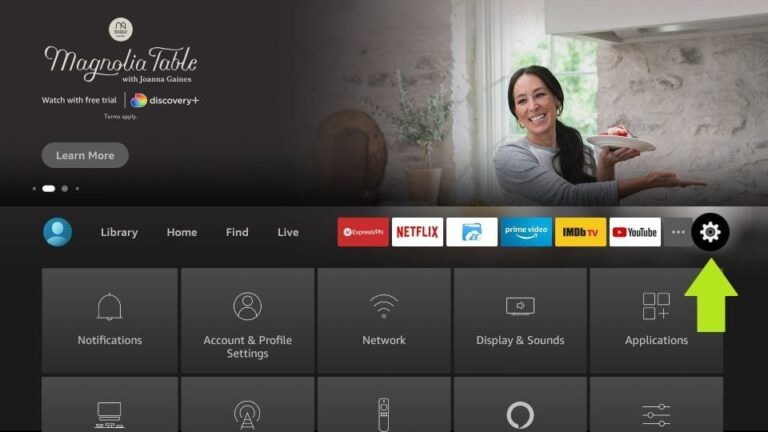
4.Once the Downloader app is installed, return to the Firestick home screen. In the menu bar, select ‘Settings
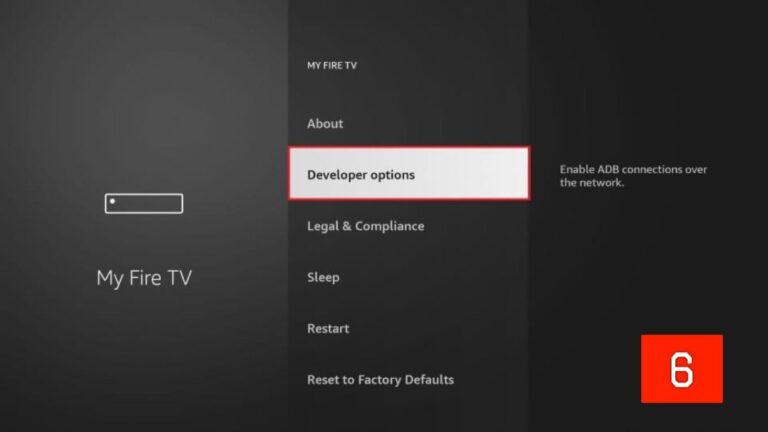
5.In the Settings, choose the option My Fire TV
6.On the next screen, select ‘Developer Options’. If you don’t see this option, go to ‘About’, highlight your Firestick’s name, and click it 7, 8, or 9 times to enable Developer Options. Afterward, press the back button on your remote to return to the previous screen, and the option should now be available
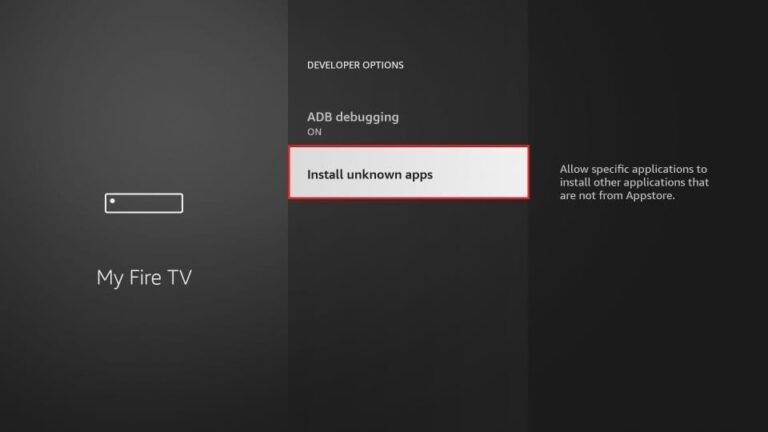
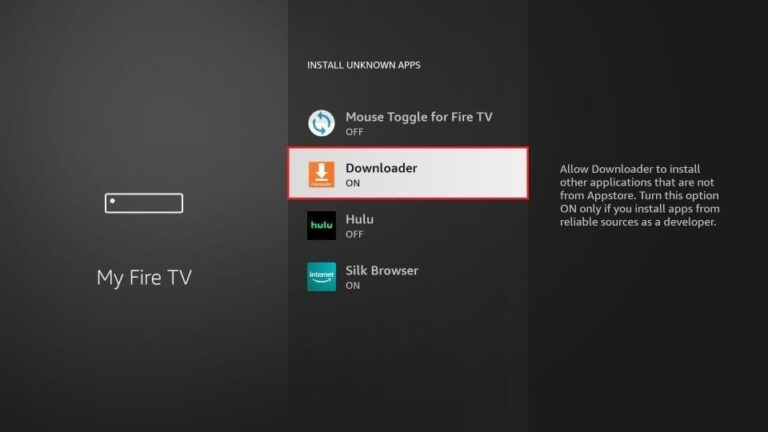
7. Click Install from unknown apps.
8. Click Downloader to change the status to ON.
By doing this, you’ve configured your Firestick to allow the installation of K Streamz app and other third-party apps. Now, follow the steps below
9.Now, open the Downloader app. When you launch it for the first time, you’ll see a series of prompts—simply dismiss them until you reach the main screen
On this screen, click the URL textbox on the right side (ensure the ‘Home’ option in the left menu is selected), where it says ‘http://’.
10. Go ahead and enter the following numerical downloader code for the player you would like.
Downloader App Code: 1429921
Give it a minute or two until the Chosen app is downloaded onto your Firestick device
12. When the download has completed, the Downloader app will run the APK file and the installation will start.
13. Open the app once downloaded.
15. Click Add Playlist
16, Click K Server New
17, Now enter the username and password given to you via email
18, Click next, let it process (can take a min) and then click done
ENJOY:)